List of the Best Free Image & Text Tools for Social Media Managers
Ten free tools for social media managers, five for images and five for text, each with a one-line verdict on what it's actually best for and why.
Most lists of tools for social media managers repeat the same five font generators and call it a roundup. This one doesn't.
These are ten free tools - five for images, five for text - picked specifically because they solve a problem the obvious picks don't, with one honest verdict on what each one is actually best for.
Every tool here is free, runs in your browser, and does one job rather than trying to be a full design suite. Here's the list.
Why This List Skips the Obvious Font Generators
Every roundup of free text tools for social media managers leads with font generators, because they're the most visually obvious pick. This list assumes you've already found and tried three of those.
What gets skipped more often are tools solving a narrower problem: an image color palette pulled from an actual photo instead of guessed at, a background gradient generator that outputs usable CSS instead of a screenshot, a contrast checker tool that gives you a measured number instead of a squint-and-hope.
The text side works the same way. A unicode symbol generator and a decorative text generator solve a smaller problem than a font generator does, and that narrowness is exactly why they're faster to use correctly under deadline.
Free Image Tools for Social Media Managers
Image work eats more time than captions do, and most of that time goes into small decisions repeated across dozens of posts a week. These five tools handle the specific decisions that add up.
- Best for pulling a palette from a photo — [Image Color Extractor](/tools/image-color-extractor). Upload a photo you already like and it pulls the dominant colors out as exact hex values - one of the simplest brand consistency tools you can add to a weekly routine, since it replaces eyeballing a match with an exact number.
- Best for story covers and backgrounds — [Gradient Generator](/tools/gradient-generator). Builds copy-ready CSS gradients from colors you pick, which is faster than hunting for a stock background that happens to match your palette.
- Best for readable text over images — [Contrast Checker](/tools/contrast-checker). Checks any foreground and background pair against WCAG thresholds, catching the caption-over-photo combinations that look fine on your screen and unreadable on someone else's.
- Best for a consistent grid — [Image Filters](/tools/image-filters). Applies one visual treatment across a batch of photos, which is what actually makes a feed look like one body of work instead of ten unrelated posts.
- Best for the right file per platform — [Image Format Converter](/tools/image-format-converter). Switches between JPEG, PNG, and WebP, since the format your camera exports is rarely the smallest one your target platform actually needs.
Free Text Tools for Social Media Managers
Caption text has its own small, repeated problems - formatting a list of hashtags, adding a divider, cleaning up text pasted from a document. These five cover the ones that come up constantly.
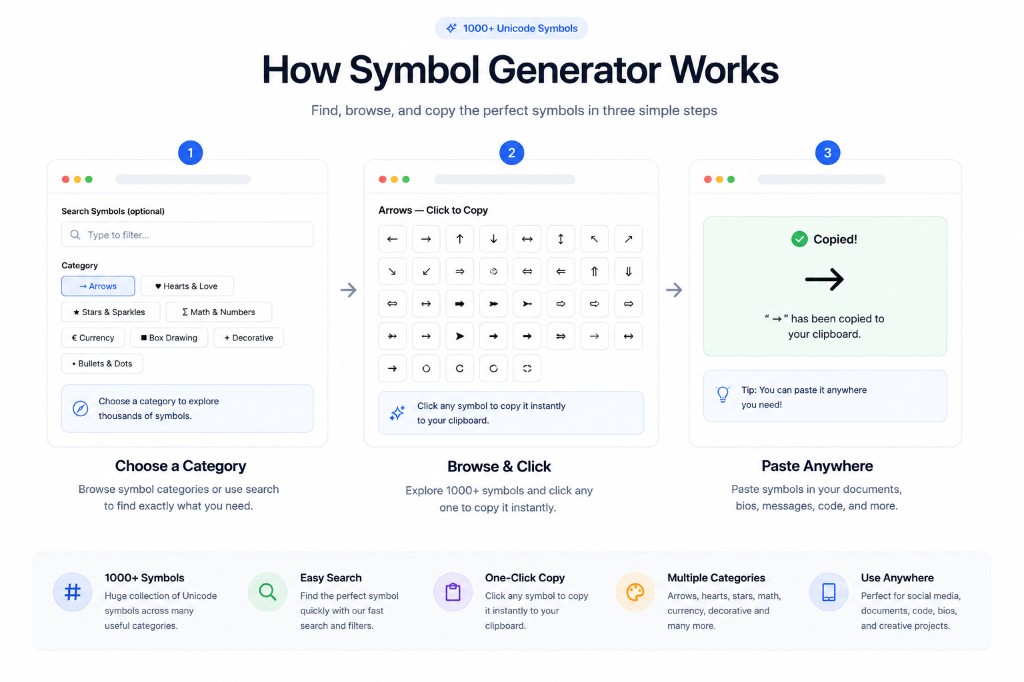
- Best for dividers and bullet points — [Symbol Generator](/tools/symbol-generator). Over a thousand searchable Unicode symbols across categories like arrows and dots, copied with one click - useful anywhere a plain bullet point looks too plain.
- Best for a minimal caption style — [Aesthetic Text Generator](/tools/aesthetic-text-generator). Converts normal text into softer decorative variants for accents and headers, without needing a design tool for a single line of styled text.
- Best for subtle emphasis — [Small Caps Generator](/tools/small-caps-generator). Renders text in small capitals for a quieter kind of emphasis than bold, useful when you want a word to stand out without shouting.
- Best for before/after captions — [Strikethrough Text Generator](/tools/strikethrough-text-generator). Strikes through a price, a claim, or an old version of a line, a format that reads instantly without needing an explanation.
- Best for pasting from a document — [Remove Text Formatting](/tools/remove-text-formatting). Strips stray formatting characters that travel along when text is pasted from a doc, which otherwise show up as broken symbols in a caption.
How These Ten Tools Compare
A quick reference for which social media manager tools solve which specific problem.
| Tool | Best for | Category |
|---|---|---|
| Image Color Extractor | Matching a palette to an existing photo | Image |
| Gradient Generator | Story covers and background treatments | Image |
| Contrast Checker | Text-over-image readability | Image |
| Image Filters | A consistent look across a grid | Image |
| Image Format Converter | The right file type per platform | Image |
| Symbol Generator | Dividers and decorative bullets | Text |
| Aesthetic Text Generator | A soft, minimal caption style | Text |
| Small Caps Generator | Subtle emphasis without bold | Text |
| Strikethrough Text Generator | Before/after style captions | Text |
| Remove Text Formatting | Cleaning up text pasted from a doc | Text |
Common Mistakes When Picking Social Media Manager Tools
A handful of habits waste more time than the tools themselves ever save.
- Reaching for a full design suite to do a one-step job a single-purpose tool handles in seconds
- Skipping the contrast check on text-over-image posts and finding out it's unreadable after it's already live
- Using the same three symbols in every caption instead of varying decorative elements by post type
- Never checking whether pasted text carried over hidden formatting until a caption looks broken after publishing
- Picking tools one at a time under deadline pressure instead of building a shortlist in advance
Expert Tips for Building Your Own Shortlist
Keep this list to the tools you actually use weekly, not everything that looked useful once. A shortlist of five tools you know well beats twenty bookmarked and half-remembered.
Test any new addition to your social media toolkit against a real caption or post before adopting it, not against a demo. A tool that looks good in a screenshot can still be slower than what you already use.
Frequently Asked Questions
Do I need all ten of these tools, or just a few?
Just the ones that solve a problem you actually have. A social media manager posting mostly text-based updates gets more value from the text tools; someone running a visual-heavy account should start with the image tools instead.
Will these symbols and styled text display the same on every platform?
Almost always on current phones and desktop browsers. Older devices occasionally render an unsupported Unicode character as an empty box, so it's worth testing a new style on a second device before relying on it in something permanent, like a bio.
Why use a contrast checker instead of just eyeballing text over an image?
Screen brightness and ambient light vary a lot between your monitor and someone scrolling outdoors on a phone. A contrast checker gives you a measured ratio instead of a guess that only holds up under your specific viewing conditions.
Is a free image color extractor as accurate as a paid design tool?
For pulling dominant colors as hex values, yes - the underlying math for extracting dominant colors from an image doesn't get more accurate with a subscription. Paid tools add collaboration and asset management, not more accurate extraction.
How often should I update my toolkit?
Only when a specific recurring task is genuinely slow, not on a schedule. Swapping tools without a real problem to solve usually costs more time relearning a new interface than it saves.
Conclusion
None of these ten free image tools and caption formatting tools replace a design background, and none of them try to. They remove the small, repeated decisions that eat time across a week of posting, which is what actually matters when you're comparing tools for social media managers.
Pick two or three from this list that solve a problem you actually have right now, and add the rest only once you've felt the gap they fill.
Sources & further reading
Tools mentioned in this guide
Ready to try it yourself?
Use our free tool to get started right away. No signup required!
Try the Tool Now →Related reading
- Boost Your Social Media Presence with Free Text and Image Tools
Grow your reach without a design budget. Free font generators, bio builders, image resizers and QR tools that make your social posts stop the scroll.
- Color Palette Generator: Create Beautiful Color Schemes for Any Project
Learn how to use a color palette generator to create harmonious color schemes for web design, branding, art, and more. Includes color theory basics and practical tips.
- Case Converter: Complete Guide to Changing Text Case Online
Learn how a case converter works and when to use UPPERCASE, lowercase, Title Case, camelCase, and more. Perfect for writers, developers, and SEO professionals.
- How to Use BetterUtils Tools for Efficient Content Creation
Efficient content creation with free BetterUtils tools: draft, tighten, visualize, format, and verify one piece of content before it ever goes live.